
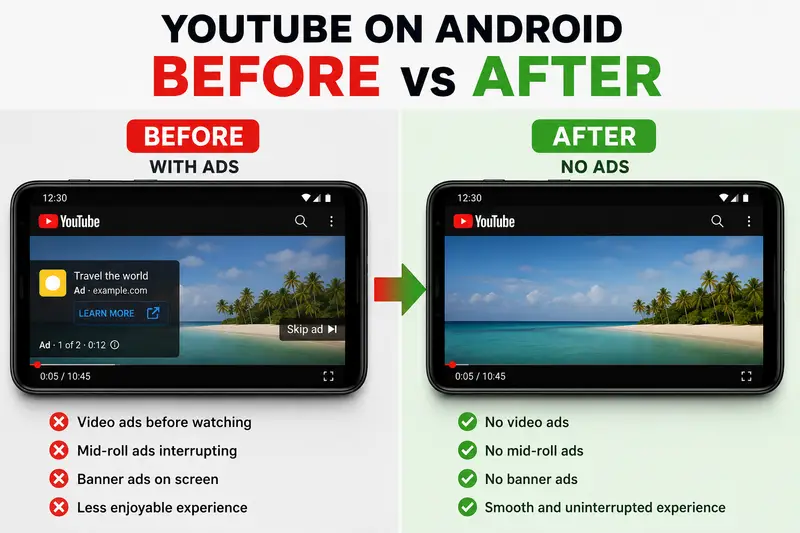
Watching videos on YouTube can become frustrating when ads interrupt every few minutes. Many Android users look for free ways to reduce or completely remove YouTube ads without paying for premium subscriptions. This guide explains the most effective methods available in 2026.
Why YouTube Shows Ads
YouTube uses advertisements to support creators and maintain the platform. Ads appear as:
- Pre-roll video ads
- Mid-roll ads
- Banner ads
- Sponsored recommendations
- Pop-up overlays
The more content you watch, the more ads you are likely to see.
Method 1: Use an Ad-Blocking Browser
One of the easiest ways to remove YouTube ads on Android is by watching videos through a browser with built-in ad blocking.
Popular options include:
- Brave Browser
- Firefox with uBlock Origin
- Kiwi Browser
Steps
- Install an ad-blocking browser from the Play Store
- Open YouTube in the browser
- Play videos normally
- Most ads will be automatically blocked
Advantages
- Free to use
- No root required
- Easy setup
- Works on many websites
Limitations
- Background playback may be limited
- Some features of the YouTube app are unavailable
Method 2: Use a Modified YouTube Client
Modified YouTube apps are designed to provide an ad-free experience and additional features such as:
- Background playback
- Picture-in-picture mode
- Sponsor skipping
- AMOLED dark themes
These apps are popular among Android users who want more control over playback and customization.
Features Commonly Included
- No video ads
- No banner ads
- Playback while screen is off
- Swipe controls for brightness and volume
- Premium-style experience without subscription
Important Notes
- Download only from trusted sources
- Keep the app updated
- Some versions may stop working after YouTube updates
Method 3: Use DNS-Based Ad Blocking
DNS ad blockers can filter advertising requests across your Android device.
Common DNS services include:
- AdGuard DNS
- NextDNS
- Control D
How It Works
The DNS blocks known advertising servers before ads can load.
Setup Process
- Open Android Settings
- Go to Network & Internet
- Select Private DNS
- Enter the DNS provider hostname
- Save settings
Benefits
- Works system-wide
- Lightweight
- No extra app required
Drawbacks
- May not block all YouTube ads
- Some apps may break temporarily

Method 4: Offline Downloads
Downloading videos for offline viewing can reduce repeated ads.
Some apps and tools allow users to save videos for later playback without interruptions.
Advantages
- No streaming ads during playback
- Useful for slow internet connections
- Saves mobile data
Is Removing YouTube Ads Safe?
Safety depends on the method used.
Generally Safe
- Ad-blocking browsers
- DNS filtering
- Open-source applications from trusted communities
Risky
- Random APK downloads from unknown websites
- Apps requesting unnecessary permissions
- Fake “YouTube Premium Free” tools
Always verify sources before installing anything on your Android device.
Best Free Option for Most Users
For simplicity and safety:
| Method | Difficulty | Effectiveness |
|---|---|---|
| Ad-blocking browser | Easy | High |
| Modified YouTube app | Medium | Very High |
| DNS blocking | Easy | Medium |
| Offline downloads | Easy | Medium |
Most users prefer modified YouTube clients because they provide the closest experience to premium features without subscription costs.
Final Thoughts
Removing YouTube ads on Android for free is possible through multiple methods. Ad-blocking browsers are the easiest starting point, while modified YouTube clients offer the best overall experience for advanced users. DNS filtering can also improve browsing by reducing ads across many apps and websites.
Choose the method that matches your technical comfort level and always download tools from reliable sources only.