
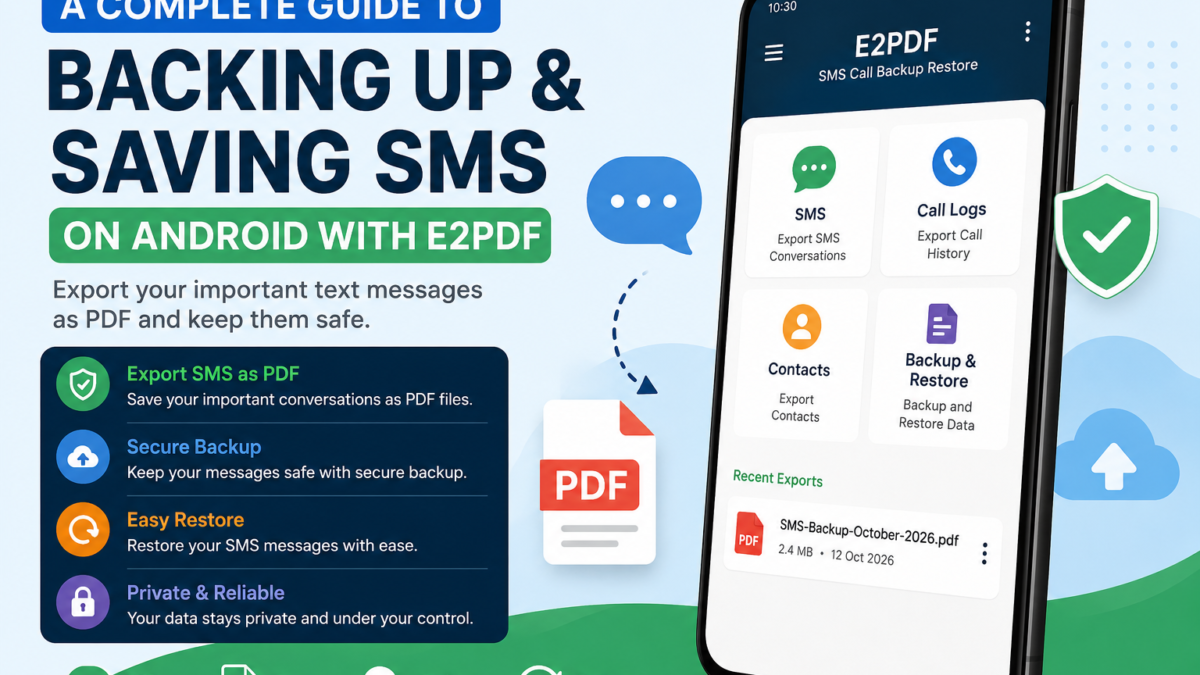
Text messages often contain important conversations, personal information, and useful details that you may want to keep for future reference. Losing these messages when changing phones or resetting your device can be frustrating.
E2PDF is an Android application that helps users export supported SMS conversations into PDF documents. This makes it easier to save, view, and organize important messages.
In this guide, you will learn how to back up SMS messages using E2PDF, save your backup securely, and understand how SMS restoration works.
What Is E2PDF?
E2PDF is an Android app designed to export supported phone data into documents such as PDF files. Depending on the app version and device compatibility, its features may include SMS backup, call log export, and SMS restoration.
A PDF backup is useful for keeping a readable record of your conversations. However, saving messages as a PDF is different from restoring them as normal SMS conversations.
What You Need Before Starting
Before using E2PDF, make sure you have:
An Android phone containing the messages you want to save.
The E2PDF app installed from a trusted source.
The necessary permissions to access SMS messages.
Enough storage space for your backup.
A secure location to store the exported file.
You can find the app through the E2PDF Google Play Store listing.
How to Back Up SMS Messages Using E2PDF
Step 1: Install and Open E2PDF
Open the Google Play Store and search for E2PDF. Check the app details, then install it if it is available for your device.
After installation, open the application and review the available backup and export options.
Step 2: Grant the Necessary Permissions
Find the SMS-related feature in the app. If Android requests permission to access your messages, review the request and grant the necessary access if you are comfortable doing so.
Only allow permissions that are relevant to the feature you want to use.
Step 3: Select the SMS Conversations
Open the SMS section and review the available conversations. Select the messages you want to preserve, if the app provides that option.
Before continuing, check your selection to make sure the important conversations are included.
Step 4: Export SMS Messages as PDF
After selecting your conversations, look for the PDF export or backup option.
Choose the available PDF export feature.
Enter a filename if prompted.
Start the export process.
Wait until the app finishes creating the document.
The exported PDF can serve as a readable record of your supported messages. However, some attachments or multimedia content may not be preserved in their original form.
Step 5: Save and Verify Your Backup
Once the export is complete, locate the PDF file using your phone’s File Manager or the save location provided by the app.
Open the document and verify that your expected conversations are visible. You can rename the file to make it easier to identify later, such as SMS-Backup-October-2026.pdf.
For additional protection, keep a second copy in a secure location, such as a trusted cloud storage account or computer.
How to Restore SMS Messages on Android
Restoring SMS messages requires a compatible backup format and a supported restoration feature.
If your version of E2PDF provides an SMS restore option, follow the instructions displayed in the app and confirm which backup formats it accepts.
Open E2PDF and locate the SMS restoration feature.
Select the supported backup file or location.
Follow the on-screen instructions.
Grant any necessary permissions after reviewing them.
Check your messaging app after the process is complete.
Important: A PDF file is primarily designed for reading and storing information. Do not assume that you can import a PDF directly into your messaging app to restore normal conversations. If you only have a PDF, you may need a separate compatible SMS backup to restore your messages.
Before resetting your phone or deleting existing conversations, make sure your backup is complete and suitable for your intended restoration method.
Tips for Keeping Your SMS Backup Safe
Follow these simple tips to protect your saved messages:
Verify your backup: Open the exported file before relying on it.
Keep an extra copy: Store important backups in a separate secure location.
Protect your privacy: Avoid sharing files containing sensitive conversations.
Use trusted apps: Review app permissions before granting access.
Plan before resetting: Confirm that you have a compatible restoration backup if you need to recover your messages later.
These precautions can help you preserve important information and reduce the risk of accidental data loss.
Frequently Asked Questions (FAQs)
1. Can E2PDF export SMS messages to PDF?
E2PDF provides PDF export functionality for supported data. The available options may vary depending on the app version and device compatibility.
2. Can I restore SMS messages directly from a PDF?
Generally, a PDF is intended for reading and storing messages, not importing them as normal SMS conversations. Restoration requires a compatible backup format and supported tool.
3. Will creating a PDF backup delete my original messages?
Exporting normally creates a separate copy. However, verify that your original messages remain available and that the PDF contains the information you need before deleting anything.
4. Can I transfer my SMS backup to another phone?
Yes. You can transfer the PDF to another device for viewing. To restore messages into the new phone’s messaging app, you will need a compatible SMS restoration method.
5. Is it safe to store SMS backups online?
It can be safe if you use a trusted storage service and protect access to your files. SMS backups may contain personal information, so avoid public sharing.
Conclusion
E2PDF can be a useful option for saving supported SMS conversations as PDF documents on Android. By selecting your messages, exporting them, verifying the file, and storing it securely, you can keep a readable record of important conversations.
If you need to restore messages after changing phones or performing a factory reset, remember that a PDF backup may not be sufficient. Always confirm that you have a compatible backup format before deleting data or resetting your device.
Keeping your messages backed up and protected can help you manage important conversations more confidently.