
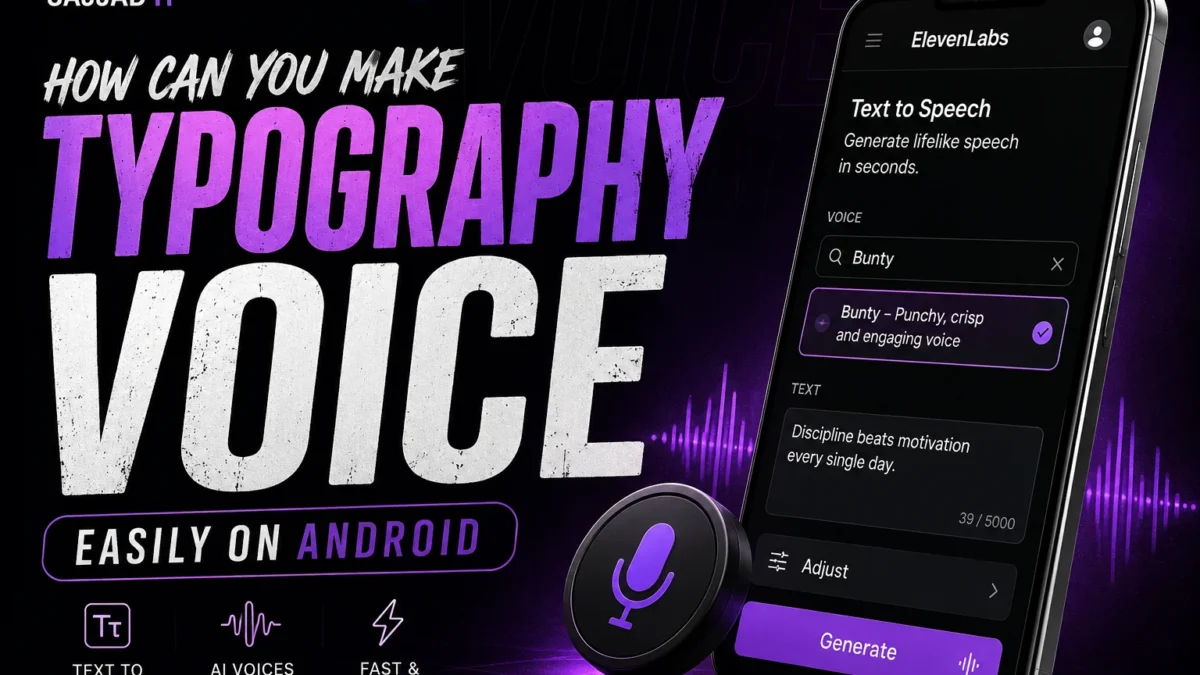
Typography voice videos and AI voiceovers are becoming popular across TikTok, Facebook Reels, YouTube Shorts, and Instagram. With AI voice generators, anyone can create professional voiceovers directly from Android without recording their own voice.
One of the easiest tools for this is ElevenLabs. It offers realistic AI voices, multiple voice styles, and simple text-to-speech generation.
This guide explains how to create a typography voice easily on Android using ElevenLabs.
What Is Typography Voice?
Typography voice usually means animated text videos combined with AI-generated narration. Creators use these voices for:
- Motivational videos
- Storytelling content
- Meme edits
- Short-form videos
- AI reels and TikTok clips
- YouTube Shorts narration
Instead of recording manually, AI converts your text into natural-sounding speech.
Why Use ElevenLabs?
ElevenLabs is one of the most realistic AI text-to-speech platforms currently available.
Key features include:
- Human-like AI voices
- Fast voice generation
- Multiple voice styles
- Easy Android access
- Free usage option
- Supports emotional speech tones
The “Bunty” voice is especially popular for punchy and crisp narration styles.
Step-by-Step Guide to Make Typography Voice on Android
Step 1: Install ElevenLabs
Open the Google Play Store on your Android device and install the ElevenLabs App.

Step 2: Click Login
After opening the app, tap the Login button on the home screen.
Step 3: Sign In With Google
Choose Sign in with Google and log into your account.
This allows you to start using the text-to-speech features instantly.
Step 4: Click “Create Now”
Once logged in, tap the Create Now button.
This opens the AI generation dashboard where you can create voiceovers.


Step 5: Click Text to Speech
Inside the dashboard, select Text to Speech.
This is the main tool used for generating typography narration voices.
Step 6: Type “Bunty” in the Search Bar
At the voice selection area, use the search bar and type:
Bunty
The app will show matching AI voices.
Step 7: Select “Bunty – Punchy, Crisp”
Choose the voice named:
Bunty – Punchy, Crisp
This voice style works well for:
- Reels
- Shorts
- Fast-paced edits
- Motivational typography videos
- Meme content


Step 8: Click “Select Voice”
At the bottom of the screen, tap Select Voice.
The voice will now be applied to your project.
Step 9: Add Your Text
Now type or paste your script into the text box.
Example:
“Discipline beats motivation every single day.”
You can add:
- Quotes
- Stories
- Captions
- Motivational lines
- Meme dialogues
- Narration scripts
Step 10: Click the Adjust Button
At the bottom section, tap the Adjust button.
This opens advanced voice settings.
Step 11: Select Eleven v3 (Alpha)
From the model list, select:
Eleven v3 (Alpha)
This model generally produces smoother and more natural AI speech quality
Step 12: Click Apply
Tap Apply to save the voice settings.
Step 13: Click Generate
Finally, press the Generate button.
The AI will convert your text into a realistic typography voice within seconds.

Tips for Better Typography Voice Videos
To make your AI voice videos more engaging:
Keep Sentences Short
Short lines sound more natural in AI narration.
Use Emotional Words
Words with emotion improve delivery quality.
Add Background Music
Use light cinematic or motivational music behind the narration.
Sync Text With Voice
Match animated typography timing with the generated speech.
Use CapCut or VN Editor
Apps like:
help animate text and create professional typography videos.
Final Thoughts
Creating typography voice content on Android is now extremely simple with ElevenLabs. By using the Bunty voice and Eleven v3 model, you can generate professional AI narration for reels, shorts, and social media content within minutes.
With the right text animation and editing style, these AI voiceovers can significantly improve content quality and audience engagement.