
Introduction
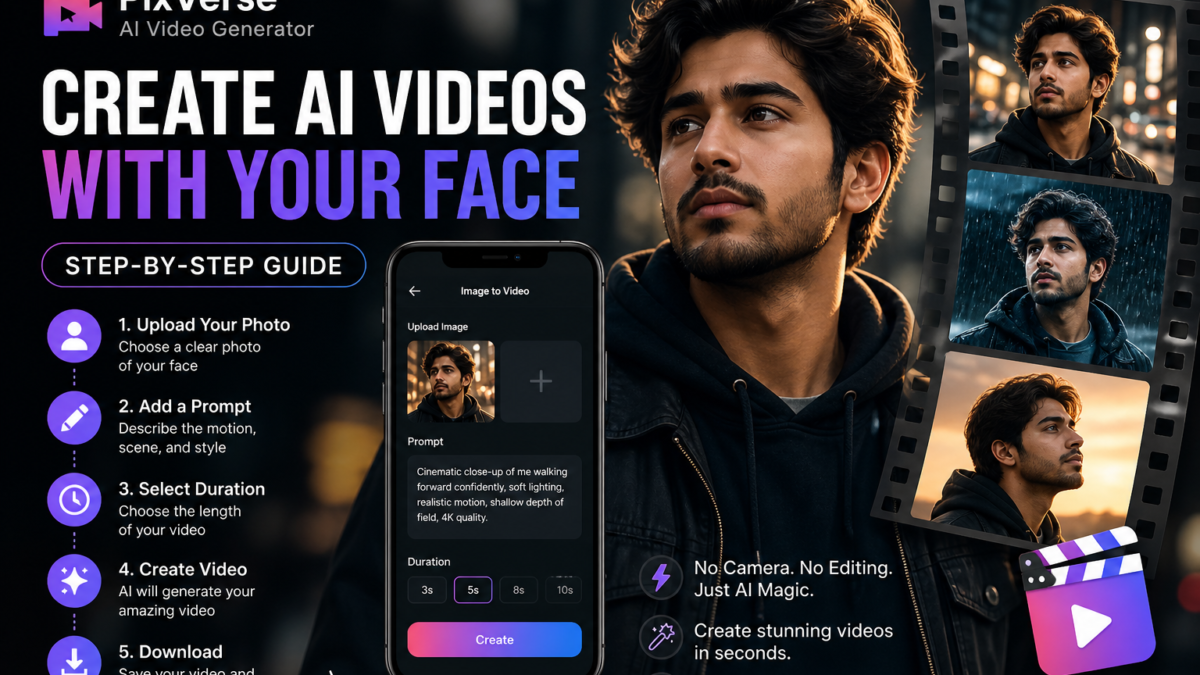
AI-driven video generation has enabled conversion of static facial images into animated video sequences without manual editing. This process uses machine learning models to simulate motion, lighting, and camera behavior from a single image combined with a structured text prompt. PixVerse provides an interface for executing this workflow with minimal technical input.
Why You Need AI Face Video Generation
AI face video tools address multiple limitations in traditional content production:
- No filming setup required — eliminates need for cameras, lighting, or studio environments
- Time efficiency — reduces production time from hours to minutes
- Cost reduction — removes dependency on editors, equipment, and locations
- Scalability — enables bulk content creation using the same base image
- Accessibility — allows non-technical users to generate visual content
This method is applicable for individuals, marketers, and creators requiring rapid visual output.
What You Can Do With It
AI-generated face videos can be used across multiple domains:
Content Creation
- Short-form videos for platforms like reels and shorts
- Profile animations
- Story-based visual content
Personal Branding
- Animated introductions
- Visual identity enhancement
- Portfolio presentation
Marketing
- Promotional video snippets
- Product storytelling with human presence
- Ad creatives
Experimentation
- Testing different visual styles
- Exploring cinematic concepts
- Rapid prototyping of video ideas
Requirements
- Android smartphone
- Installed PixVerse application
- Google account for login
- High-quality portrait image
- Internet connection for processing
Step-by-Step Process
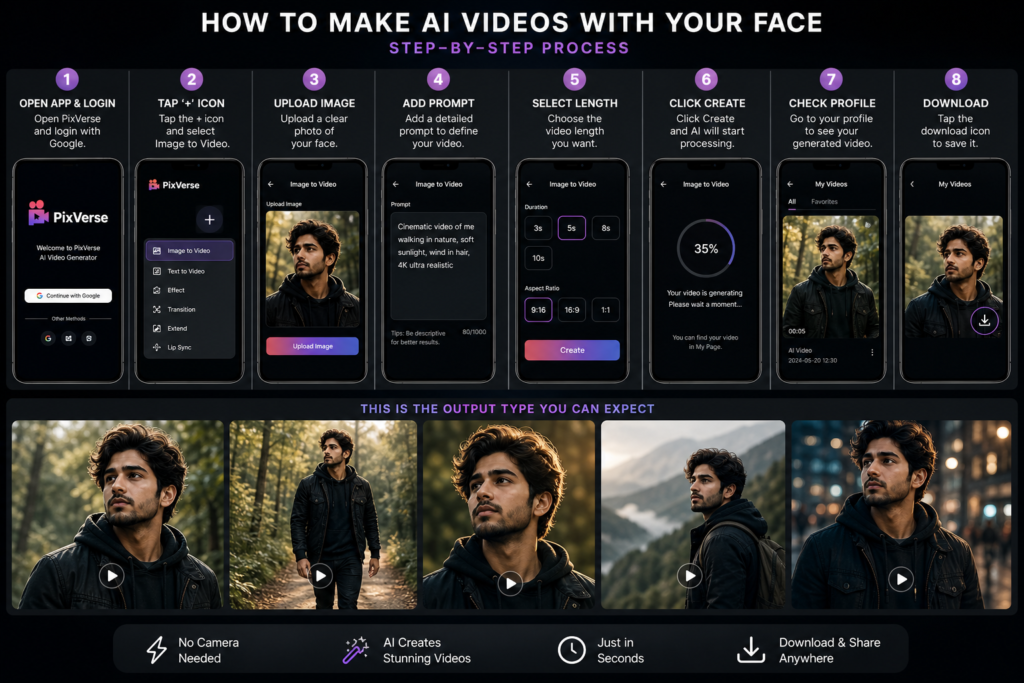
1. Install and Open the App
Launch PixVerse after installation. Log in using a Google account.
2. Grant Permissions
Allow storage and media permissions to enable file access.
3. Start a New Project
Tap the “+” icon. Select Image to Video mode.
4. Upload Your Image
Choose a clear facial image with:
- Proper lighting
- Centered composition
- Minimal background noise
- No heavy filters
5. Add a Prompt
Enter a structured description to define motion and visual style.
6. Select Video Duration
Choose a suitable length based on intended use.
7. Generate Video
Tap Create. The system processes the request via cloud-based rendering.
8. Download Output
Access your profile section. Download the completed video.
How AI Generates the Video
The system performs multiple stages:
- Face Mapping — identifies facial landmarks and geometry
- Depth Simulation — estimates 3D structure from 2D input
- Motion Application — applies prompt-based animation
- Frame Generation — creates sequential frames
- Rendering — compiles frames into a video
This process is automated and does not require manual intervention.
Prompt Engineering Explained
The output quality depends heavily on prompt structure.
Key Components
| Component | Description |
|---|---|
| Subject Action | Defines movement |
| Camera Motion | Controls perspective |
| Lighting | Sets visual tone |
| Style | Determines realism or artistic effect |
| Quality Tags | Enhances detail |
Example Prompt Patterns
- “Close-up portrait of me turning slowly, cinematic lighting, shallow depth of field, ultra realistic, 4K”
- “Full body shot of me walking forward confidently, urban night scene, neon lights, smooth tracking shot, high detail”
Image Selection Guidelines
Input quality directly affects output accuracy.
Recommended:
- High-resolution images
- Neutral facial expression
- Even lighting
- Clear background
Avoid:
- Blurry images
- Extreme angles
- Obstructed faces
- Overexposed or underexposed photos
Best Practices for High-Quality Output
- Use simple, clear prompts instead of overly complex descriptions
- Keep motion realistic to avoid distortion
- Match lighting description with the original image
- Test multiple prompts for optimization
- Start with shorter video durations
Common Issues and Limitations
- Facial distortion — caused by low-quality images
- Unnatural motion — due to overly complex prompts
- Processing delays — dependent on server load
- Limited duration — short-form outputs only
- Inconsistent results — variations between generations
Advantages Over Traditional Video Creation
| Feature | AI Video Generation | Traditional Editing |
|---|---|---|
| Setup Required | None | Camera + Lighting |
| Time Consumption | Minutes | Hours to Days |
| Cost | Low | High |
| Skill Requirement | Minimal | Advanced |
| Scalability | High | Limited |
Use Case Scenarios
- Creating social media content at scale
- Generating AI-based profile visuals
- Building marketing assets quickly
- Producing experimental cinematic clips
- Enhancing personal digital presence
Workflow Summary
- Upload image
- Enter structured prompt
- Select duration
- Generate video
- Download output
Conclusion
AI image-to-video generation enables efficient production of animated visual content using minimal resources. PixVerse simplifies this process through an accessible interface and automated rendering pipeline. Output quality is determined by input image clarity and prompt precision, making these two factors critical for optimal results.
| 🎯 Get Viral Result |
|---|
| Try Gemini New Prompt |
| ⚡ Use AI Prompt |