
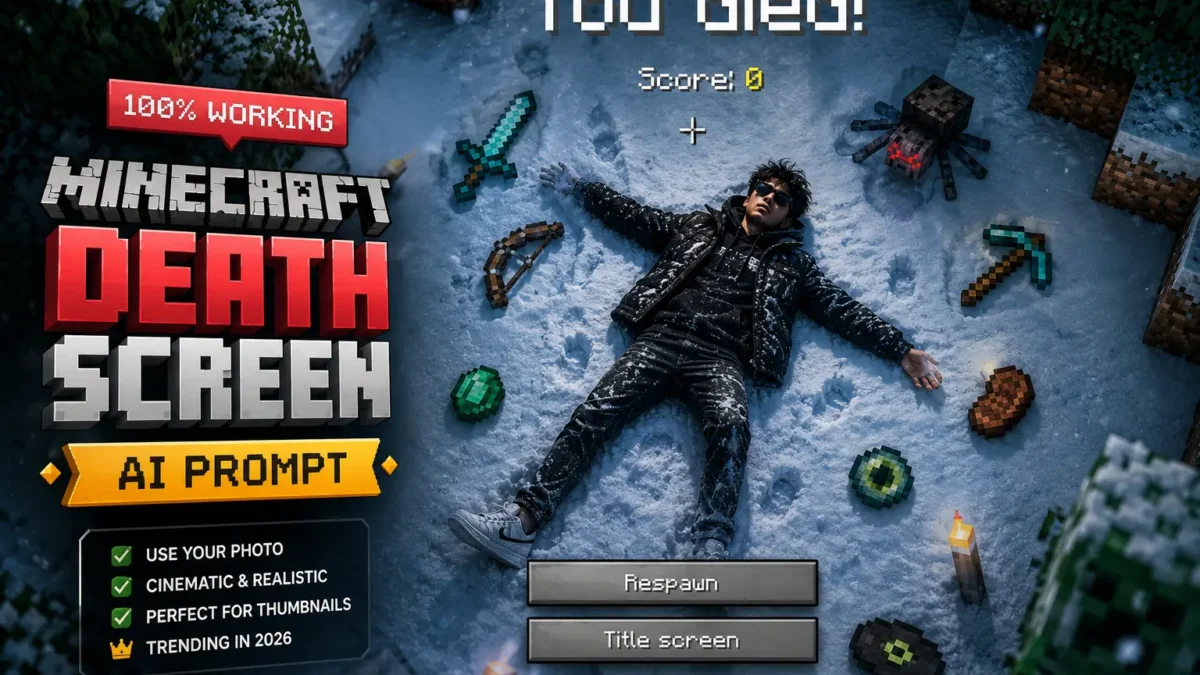
The Minecraft death screen ai prompt has become one of the most popular AI image trends in 2026. This unique prompt transforms your ordinary photo into a cinematic game-over scene straight from Minecraft – featuring you lying in snow surrounded by floating pixelated items, the iconic “You died!” overlay, and that signature blocky aesthetic blended seamlessly with realistic photography.
Whether you need eye-catching YouTube thumbnails, unique gaming content visuals, a viral social media post, or a one-of-a-kind profile picture, this prompt delivers results that stand out in any feed. The combination of realistic photography with pixel-art game elements creates a visually striking contrast that viewers cannot ignore.
Below is a detailed guide with a copy-paste ready version that works with both ChatGPT and Gemini. Follow the tips to get the best possible results for your content.
Related: Ultra Realistic AI Sunset Prompt | Premium Pixel Stretch Effect | Top 10 AI Photo Editing Prompts
What Is a Minecraft Death Screen?
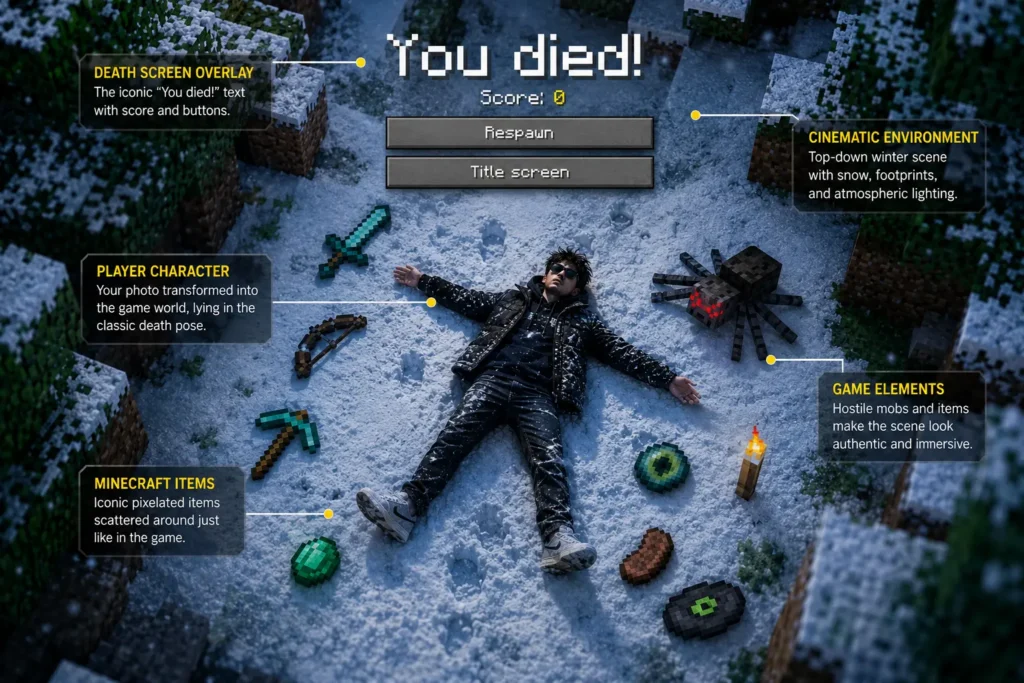
If you have ever played Minecraft, you are familiar with the death screen. It appears when your character dies in the game – a dark overlay with white text displaying “You died!” in that distinctive pixel font, along with your score and buttons to respawn or return to the title screen.
This death screen has become iconic in gaming culture. It represents that frustrating but familiar moment when everything goes wrong in the blocky world of Minecraft. Now, thanks to advanced AI image generation, you can place yourself inside this iconic scene – creating a unique visual that blends your real photograph with the pixelated Minecraft aesthetic.
The result is not just a simple photoshop job. The AI actually generates a cohesive scene where your face and body are preserved from your reference photo, while the environment transforms into an authentic Minecraft winter landscape with floating items, atmospheric lighting, and that signature game overlay.
What This Prompt Creates
The prompt below is carefully crafted to generate every element of the Minecraft death screen aesthetic while preserving your physical features from the reference image. Here is what each part of the prompt achieves:
Subject Preservation
“Use 100% of the face and body from my reference image” – This is the most critical instruction. It tells the AI to preserve your facial features, body shape, and physical characteristics exactly as they appear in your uploaded photo. Without this, the AI might generate a generic person rather than YOU in the scene.
Winter Scene Setting
“Create a cinematic top-down winter scene” – This establishes the overall environment. The top-down angle is iconic to Minecraft death screens. The winter setting creates a moody, cold atmosphere with snow covering the ground. The slightly desaturated tones add to the cold, lifeless feeling appropriate for a death scene.
Person Placement
“The person is lying spread out on snow, wearing casual winter clothes, realistic pose” – This positions your body in the classic death pose – lying flat on the ground, arms and legs spread out. The winter clothes ensure you are dressed appropriately for the snowy environment. The realistic pose instruction prevents the AI from generating awkward or unnatural body positions.
Environmental Details
“Cold atmospheric lighting, slightly desaturated tones, footprints visible in the snow” – These details add realism and atmosphere. The cold lighting creates that blue-tinted winter look. The desaturated tones prevent colors from being too vibrant, maintaining the somewhat grim death screen mood. Footprints in the snow add environmental storytelling – they show how you ended up in this position.
Minecraft Items
“Surround the person with floating or placed pixelated Minecraft-style items including a diamond sword, bow, pickaxe, emerald, steak, Ender Eye, music disc, and spider mob” – These items are scattered around the player in typical Minecraft fashion. They are rendered in the blocky, pixelated style of the game, floating or placed naturally in the snow around the fallen player.
Game Overlay
“Add a realistic Minecraft ‘You died!’ game over overlay at the top with pixel font, including ‘Score: 0’, crosshair symbol, and two retro UI buttons labeled ‘Respawn’ and ‘Title screen'” – This is the signature Minecraft death screen element. It recreates that familiar game UI with the white “You died!” text in pixel font, the score display, and the two buttons at the bottom of the screen.
Visual Quality
“Blend realistic photography with pixel-art game elements naturally. Soft shadows, moody winter aesthetic, ultra detailed, vertical composition, DSLR realism, subtle depth of field, high contrast, 9:16 ratio” – These instructions ensure the final image looks professional. The blend of realistic photography with pixel art should look natural, not jarring. Soft shadows and moody lighting create atmosphere. Ultra detail ensures nothing looks blurry or low quality. The 9:16 vertical ratio is perfect for YouTube thumbnails and social media.
Best Uses for Minecraft Death Screen Images
The Minecraft death screen aesthetic has become incredibly popular across multiple platforms and use cases:
YouTube Thumbnails
YouTube gamers use these images as thumbnail backgrounds that immediately signal gaming content. The recognizable Minecraft aesthetic catches the eye of viewers browsing through gaming videos. The vertical 9:16 ratio is optimized for YouTube mobile thumbnails, where most views occur.
Minecraft Content Creators
If you create Minecraft content, these images are perfect for video thumbnails, channel art, profile pictures, and end screens. They reinforce your gaming identity while showing viewers you understand the Minecraft aesthetic deeply.
Social Media Posts
Instagram, TikTok, and X (Twitter) users create unique profile images and story posts using these prompts. The eye-catching visual stands out in crowded feeds and generates engagement from followers who recognize the Minecraft reference.
Gaming Blog Content
Bloggers writing about gaming, Minecraft tips, video game aesthetics, or AI image generation use these images as featured visuals in their posts. The image enhances the content while providing internal linking opportunities.
Memes and Viral Content
The Minecraft death screen has meme potential. Users create variations showing different scenarios – maybe “died” at a difficult game, “died” from scrolling too long, or “died” from laughing too hard. The template is versatile for comedic content.
How to Customize the Prompt
One of the best features of this prompt is its flexibility. You can modify various elements to create different variations:
Change the Biome
Swap “winter scene” or “snow” for different Minecraft biomes. Try “desert” for a stranded-in-the-desert death, “jungle” for a lost-in-the-jungle scene, “nether” for a dramatic nether death, or “ocean” for an underwater death. Each biome creates a completely different mood and color palette.
Replace Items
Customize the floating items based on what fits your theme. Swap “diamond sword” for “trident” if you prefer ocean content. Add “gold apple” for a valuable item display. Include “Totem of Undying” for an irony joke. Remove or add items to match your content needs.
Adjust the Pose
Change “lying spread out” to “kneeling” for a more dramatic dying pose. Try “sitting” for a wounded-but-still-alive look. You can even modify to show “falling” for more dynamic compositions.
Add Effects
Include additional effects like “creeper explosion aftermath,” “dragon fight scene,” “PvP battleground,” or “falling from great height” to add more storytelling elements to your death screen.
Change the Score
After generation, you can edit the “Score: 0” to any number. Some users prefer a high score for comedic effect, while others keep it at 0 for accuracy.
Copy the Minecraft Death Screen Prompt
Paste directly into ChatGPT image generation or Gemini with your photo uploaded as the reference.
Use 100% of the face and body from my reference image. Create a cinematic top-down winter scene inspired by a Minecraft death screen. The person is lying spread out on snow, wearing casual winter clothes, realistic pose, cold atmospheric lighting, slightly desaturated tones, footprints visible in the snow. Surround the person with floating or placed pixelated Minecraft-style items including a diamond sword, bow, pickaxe, emerald, steak, Ender Eye, music disc, and spider mob. Add a realistic Minecraft 'You died!' game over overlay at the top with pixel font, including 'Score: 0', crosshair symbol, and two retro UI buttons labeled 'Respawn' and 'Title screen'. Blend realistic photography with pixel-art game elements naturally. Soft shadows, moody winter aesthetic, ultra detailed, vertical composition, DSLR realism, subtle depth of field, high contrast, 9:16 ratio.Negative Prompt
Including a negative prompt helps avoid common issues that can ruin your image. Copy this negative prompt and use it alongside the main prompt:
low quality, blurry face, distorted body, extra limbs, wrong facial features, cartoon body, unrealistic.Tips to Get the Best Results
Use a High-Quality Reference Photo
The quality of your output depends heavily on your input. Use a clear photo where your face is visible and your body is in frame. The AI preserves your features, so a high-quality source produces better results. Avoid blurry, dark, or heavily filtered photos.
Dress Appropriately
For the most realistic results, use a photo taken in winter clothing. A jacket, scarf, and winter accessories will blend better with the snowy scene than summer clothes.
Face Visibility Matters
Ensure your face is clearly visible in the reference photo. The AI needs to see your facial features to preserve them accurately. Photos where your face is turned away or partially obscured may not work as well.
Generate Multiple Variations
Generate 3-5 variations and pick your favorite. AI image generation is not always predictable – some generations will capture your features better than others. Do not settle for the first result if it does not look right.
Edit After Generation
You can edit the prompt after generation to make small adjustments. If the score shows “0” but you want it to show “9999,” simply ask the AI to modify that specific element. Most AI tools handle iterative edits well.
Save Your Best Results
Save your best outputs immediately. AI tools do not store generation history indefinitely, and you do not want to lose a great result.
Why This Prompt Works So Well
The success of this prompt lies in its careful balance of specific instructions. Each element serves a purpose:
The “100% face and body” instruction ensures personal preservation. The “cinematic top-down” establishes the iconic angle. The “winter scene” creates the moody atmosphere. The item list provides authentic Minecraft elements. The game overlay completes the signature look.
Without any of these elements, the result would not look like an authentic Minecraft death screen. Together, they create a cohesive image that instantly reads as “Minecraft” to anyone who sees it.
Final Thoughts
The Minecraft death screen prompt represents everything that makes AI image generation exciting. It takes something familiar and transforms it into something personal and unique. Your face, your body, your photo – reimagined as a Minecraft character in their final moments.
Whether you are a content creator looking for thumbnails, a gamer wanting a unique profile picture, or just someone who wants to try something fun, this prompt delivers. The only limit is your imagination.
More creative AI prompts are published weekly on Sajjad IT. Check back for the next viral prompt to make your content stand out.