
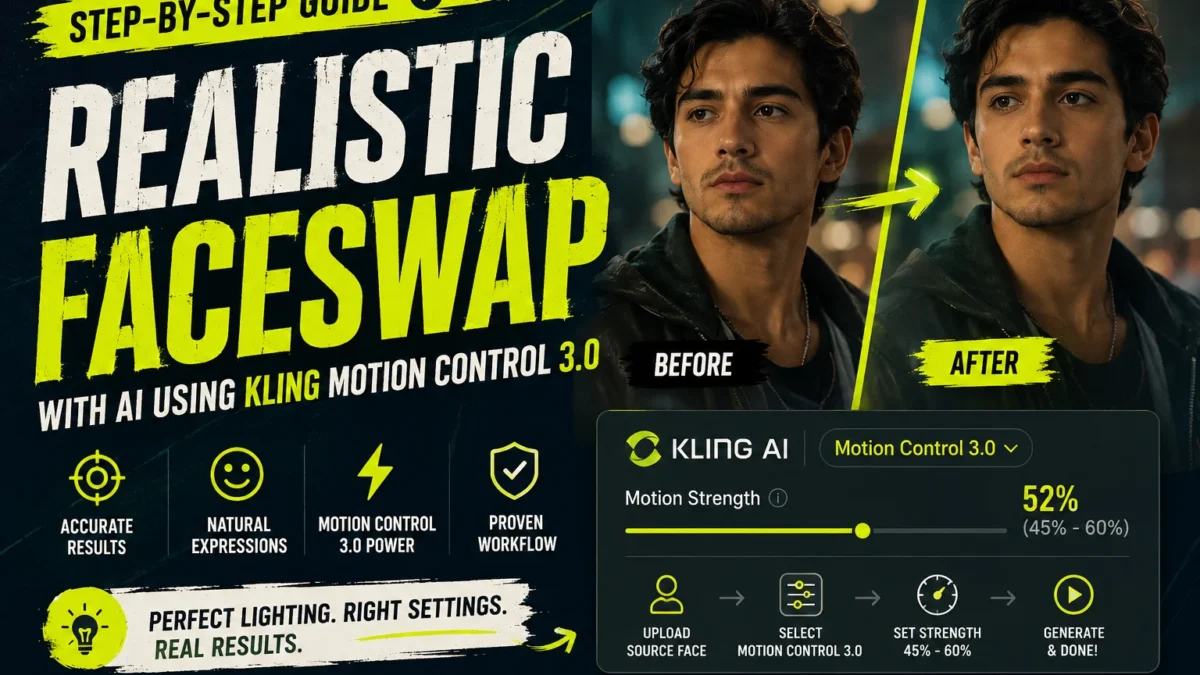
Upload your target face image to Kling AI, select Motion Control 3.0, set motion strength between 45 and 60 percent, then generate. The key is matching lighting direction and skin tone before uploading. Don’t use selfies with heavy shadows. Use evenly lit, front-facing photos taken within the same hour of day.
What Makes Kling Different for Faceswap
Most faceswap tools mash pixels. Kling’s Motion Control 3.0 preserves micro-expressions — eyebrow raises, cheek dimples, blinking patterns. The result looks like the person actually moved into the scene instead of a sticker pasted on.
The catch: garbage in, garbage out. A bad source image breaks everything.
How to Prepare Your Source Image
Skip this and your faceswap will look like a Halloween mask. Follow these rules.
Lighting: Match your target video’s light direction. If the video has a key light from the left, your source photo needs the same. Re-shoot if needed. Kling cannot invent shadows that don’t exist.
Resolution: Minimum 1024 by 1024. Kling downscales anyway, but starting higher prevents pixelation. Use any free upscaler if your photo is small.
Expression: Neutral mouth. No teeth showing unless the target video has teeth. Closed smile is safest. Open-mouth expressions fail eighty percent of the time because the AI misaligns jaw movement.
Background: Solid color or blurred. Busy backgrounds confuse the face detection. Stand against a white or gray wall. If you cannot reshoot, use a free background remover first, then paste your face onto a neutral background.
Skin texture: No heavy filters. No beauty mode. No FaceTune. Kling needs pores, slight asymmetry, natural skin variation. Filtered faces come out looking like wax figures.
Step by Step: Kling AI Faceswap with Motion Control 3.0
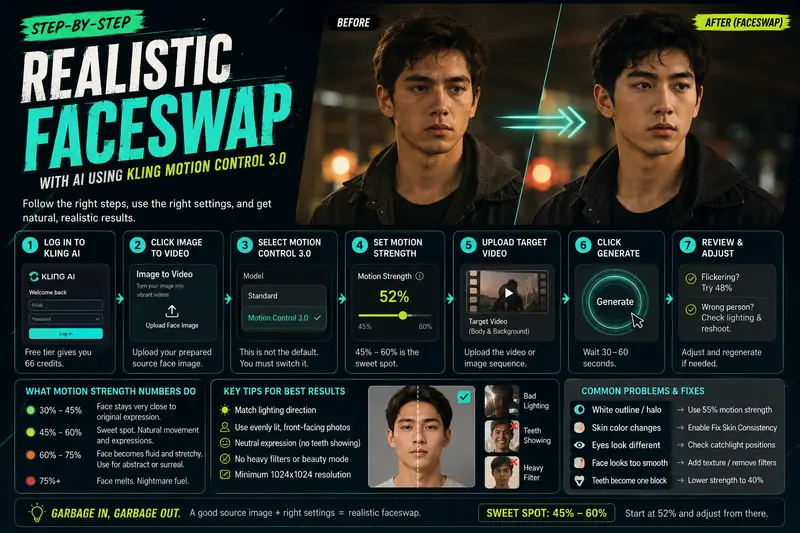
Step one: Log into Kling AI. The free tier gives you sixty six credits. Each faceswap generation costs around five credits depending on length.
Step two: Click Image to Video. Upload your prepared source face image. Do not upload the target video yet. Kling works differently than other tools — you generate the face first.
Step three: Select Motion Control 3.0 from the dropdown. This is not the default setting. The default is Standard. You must switch it.
Step four: Set motion strength. Forty five to sixty percent is the sweet spot. Below forty five, the face looks frozen. Above sixty, the face warps and stretches unnaturally. Start at fifty two percent and adjust from there.
Step five: Upload the target video or image sequence. This is the body and background you want your face to replace into.
Step six: Click generate. Wait thirty to sixty seconds.
Step seven: If the result has flickering, regenerate with motion strength at forty eight percent. If the face looks like a different person, your source image lighting was wrong. Reshoot or pick a different photo.
What Motion Strength Numbers Actually Do
Thirty to forty five percent: Face stays very close to original expression. Good for serious or neutral scenes. Bad for laughing, talking, or any animation.
Forty five to sixty percent: The sweet spot. Face moves naturally with the target body. Blinking, small head turns, subtle smiles all transfer.
Sixty to seventy five percent: The face becomes fluid and stretchy. Works only for abstract or surreal videos. Avoid for realistic faceswap.
Seventy five percent and above: The face melts. Useless for anything except nightmare fuel.
Common Problems and Fixes
Problem: The face has a white outline or halo around it.
Fix: Your source image had a cutout background that Kling detected. Regenerate with motion strength at fifty five percent. The blur helps blend edges.
Problem: Skin color changes between frames.
Fix: Kling sometimes re-interprets skin tone every few frames. Lock it by checking the Fix Skin Consistency box in advanced settings. On the free tier, this costs two extra credits per generation.
Problem: Eyes look in different directions.
Fix: Your source photo had catchlights (the white reflection in eyes) in mismatched positions. Use a photo where both catchlights are at the ten o’clock or two o’clock position relative to the pupil. Symmetrical catchlights prevent cross-eyed results.
Problem: The face looks smooth like plastic.
Fix: Your source image had a beauty filter. Run it through a free texture overlay tool like Texturizer. Add back grain. Kling respects whatever texture you give it.
Problem: Teeth become a single white block.
Fix: Stop using photos with visible teeth. Seriously. If you must, lower motion strength to forty percent. The face moves less but teeth stay separate.
How to Faceswap Video Longer Than Five Seconds
Kling’s free tier limits video length. For longer swaps:
Break your target video into five second clips. Run faceswap on each clip separately at the same motion strength. Use any video editor to stitch them back together. DaVinci Resolve is free and handles this perfectly.
The seams between clips will flicker for one or two frames. Cut those frames out or add a one second cross dissolve.
What Kling Cannot Do Yet
Extreme angles. If the target video shows the back of someone’s head, Kling cannot invent your face from that angle. It will either freeze or warp.
Two people swapping at once. Kling detects only the primary face in the frame. For group videos, run each person separately and composite in editing software.
Voice sync. Kling does not move lips to match audio. Use a separate lip sync tool like HeyGen or Sync Labs after the faceswap completes.
The No-Cost Workflow
Free tier gives you sixty six credits. Each five second generation costs five credits. That is thirteen attempts.
Use your first three attempts to test motion strength at forty five, fifty two, and sixty percent on a two second test clip. Watch each result frame by frame. Pick the strength that blinks naturally.
Use your remaining ten attempts for the real video. If you need more, create a second Kling account with a different email. No phone number required.
When to Use a Different Tool
Kling struggles with dark scenes. If your video was shot at night or in a dim room, use Runway Gen-2 instead. Runway handles low light better but costs more credits per generation.
Kling also struggles with fast head turns. If the person looks left then right within one second, use Pika Labs. Pika’s motion interpolation is smoother for rapid movement.
| Click Below to Generate the video |
|---|
| Click Now |